
Setting up IPTV on your Samsung Smart TV lets you stream live channels, movies, and video on demand (VOD) straight from the TV’s built-in apps, with no Firestick or Android box required. If you’ve been looking for a clear IPTV Samsung Smart TV walkthrough, this guide takes you from preparing the TV to loading your playlist and fixing the most common errors.
Samsung Smart TVs run Tizen OS and install apps through the Apps section of Smart Hub. The setup has two parts: you install an IPTV player (the app), then connect it to your IPTV subscription (the content). The player itself contains no channels.
It’s a large audience. According to market research firm Omdia, Samsung held a 29.1% share of the global TV market in 2025, its 20th consecutive year as the world’s top TV brand.
Key Takeaways (TL;DR)
- Connect the TV to the internet, update its software, and sign in to your Samsung account before installing anything.
- Install an IPTV player for Samsung TV, such as IPTV Smarters Pro, from the Apps section of Smart Hub.
- Log in with Xtream Codes details, or link an M3U playlist to your TV’s MAC address from a phone or computer.
- Most problems are fixed by a software update, a Smart Hub Connection Test, or a Smart Hub reset.
Requirements: What You’ll Need
- A Samsung Smart TV connected to the internet. Menu names and layouts vary slightly by model year and region.
- A Samsung account. Samsung requires one to download apps; you can create it on the TV, a phone, or a computer.
- A stable internet connection. For reference, Netflix recommends at least 5 Mbps for 1080p and 15 Mbps for 4K streaming, which is a sensible baseline for IPTV too. A wired Ethernet connection is the most reliable option.
- An active subscription from a licensed IPTV provider. You’ll receive either Xtream Codes details (username, password, server URL) or an M3U playlist link. Our guide to the best legal IPTV services is a good starting point, and you can compare options in our roundup of the best IPTV service providers.
- A phone or computer. MAC-address-based players need a second device to upload your playlist.
- Your Samsung remote.
Choose the Best IPTV App for Samsung TV
There’s no single “best” app. The right IPTV app for Samsung TV is the one that matches the login type your provider gives you. If you’re not sure which type you have, read our M3U vs MAC address explainer first.
| App type | Example | How you log in | Good to know |
|---|---|---|---|
| Xtream Codes player | IPTV Smarters Pro | Username, password, and server URL typed on the TV | Free to download; your provider must support it on Samsung TVs |
| MAC-address player | Smart IPTV, IBO Player | Upload an M3U link on the app’s website using the TV’s MAC address | Usually a free trial followed by a one-time activation fee; store availability varies by region |
This guide uses IPTV Smarters Pro as the main example. If you prefer Smart IPTV, our full Smart IPTV setup walkthrough covers that app in detail.
IPTV Samsung Smart TV Setup: Step-by-Step Guide
Part 1: Prepare Your Samsung TV
Step 1: Connect Your Samsung TV to the Internet
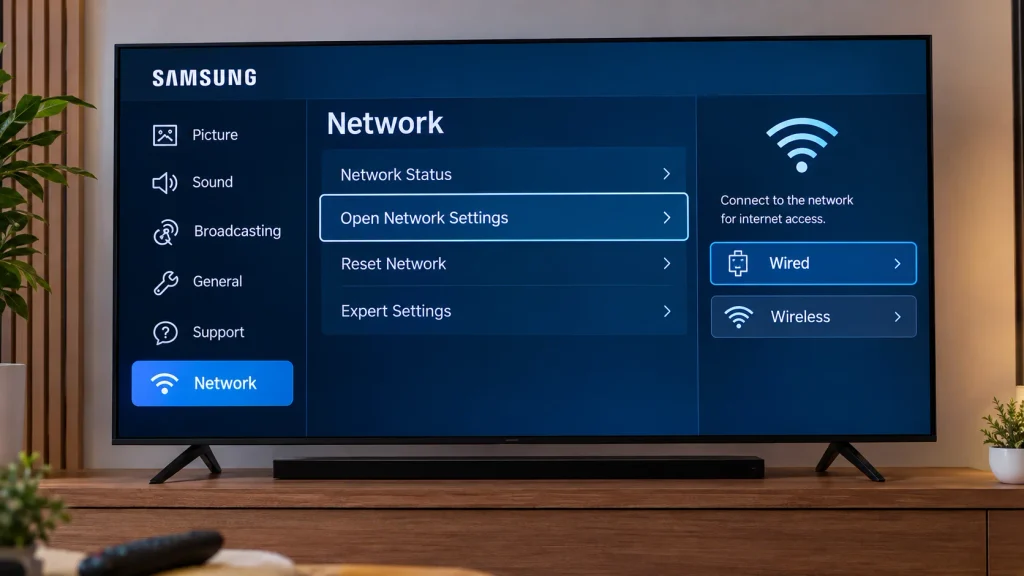
Press Home on your remote, then go to Settings > All Settings > Connection > Network and open Network Settings. Choose Wired if an Ethernet cable is plugged in, or select your Wi-Fi network and enter its password.
Step 2: Update the TV Software
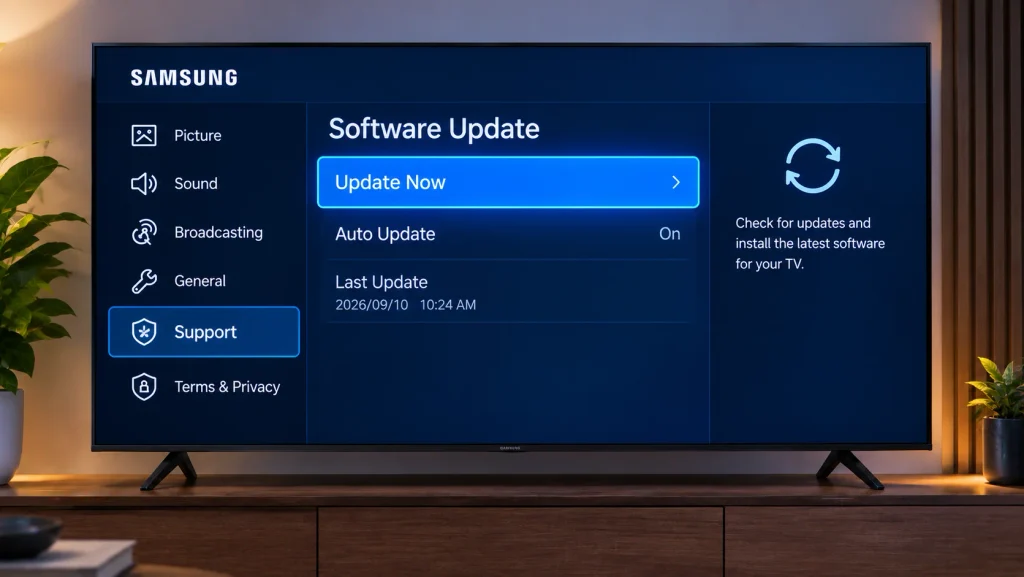
Go to Settings > All Settings > Support > Software Update and select Update Now. Keep the TV switched on until the update finishes. Samsung’s official software update guide also explains how to enable Auto Update.
Step 3: Sign In to Your Samsung Account
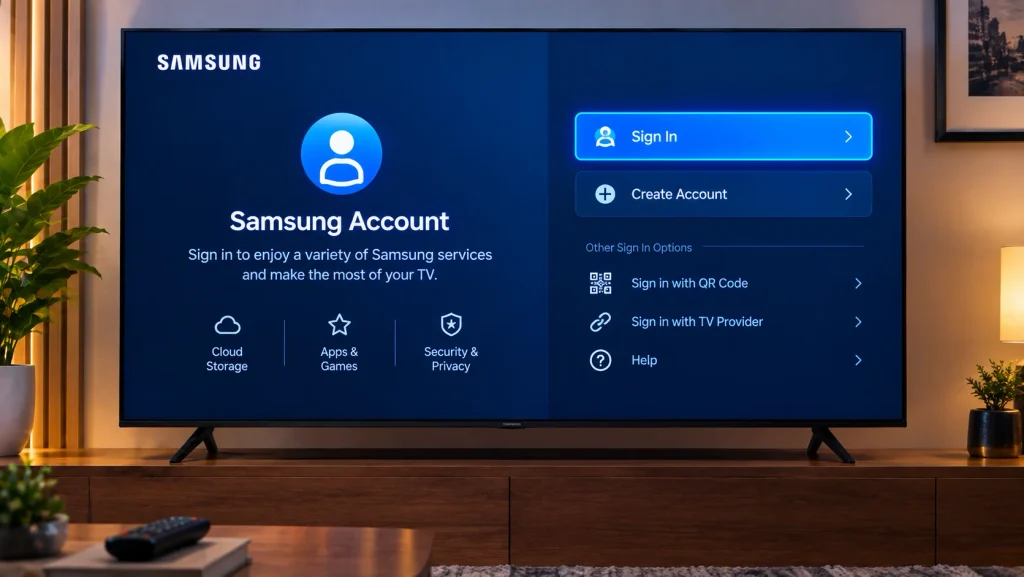
Open Settings > All Settings > General and find the Samsung account option, then sign in with your email and password. The app store won’t let you install apps until you’re signed in.
Part 2: Install an IPTV Player for Samsung TV
Step 4: Open the Apps Section
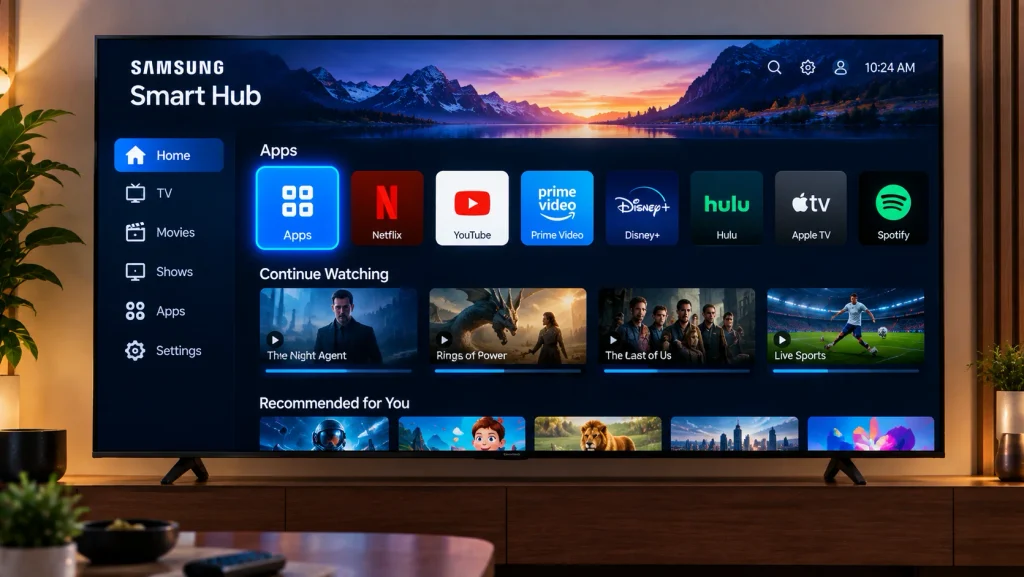
Press Home, then scroll to and select Apps. This opens the Samsung app store inside Smart Hub.
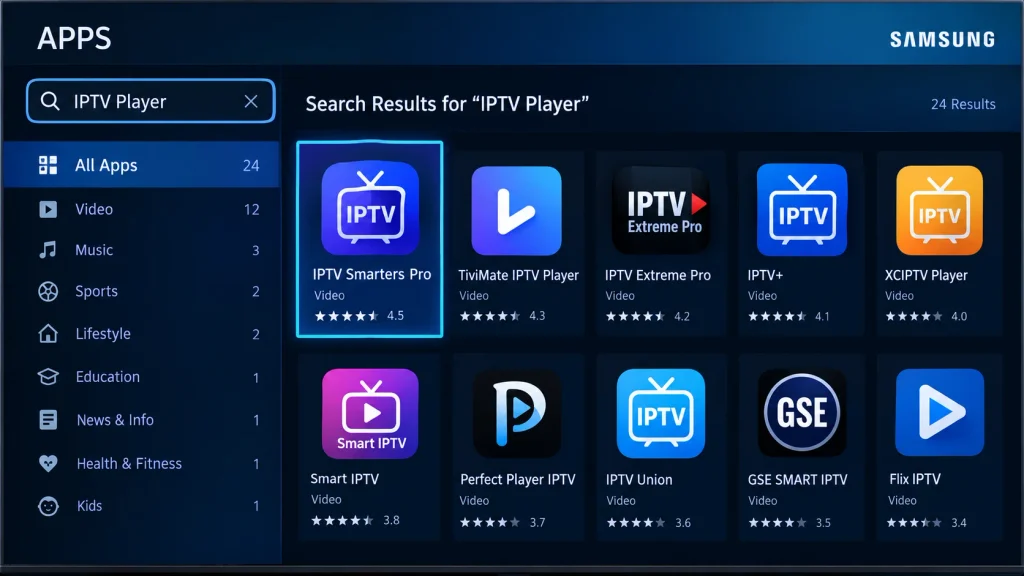
Step 5: Search for Your Samsung TV IPTV Player
Select the magnifying glass icon in the top-right corner and type IPTV Smarters Pro (or the name of the player your provider recommends). Samsung’s own app installation guide shows the same search flow.
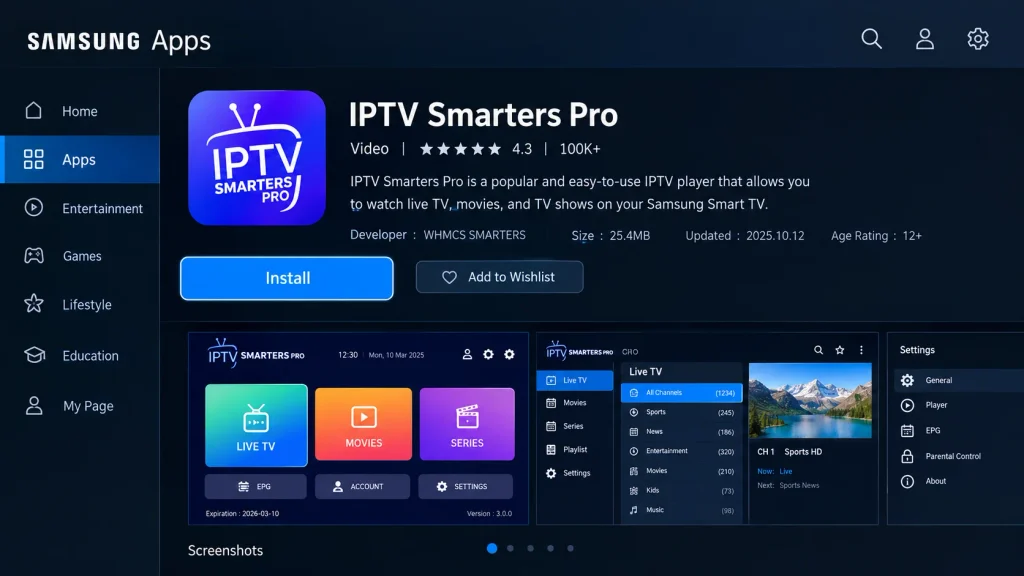
Step 6: Install IPTV Smarters Pro on Samsung TV
Select the app from the results and choose Install. The official IPTV Smarters Pro listing confirms it’s published by WHMCS Smarters and supports the Xtream Codes API, live TV, movies, series, EPG, and parental controls.
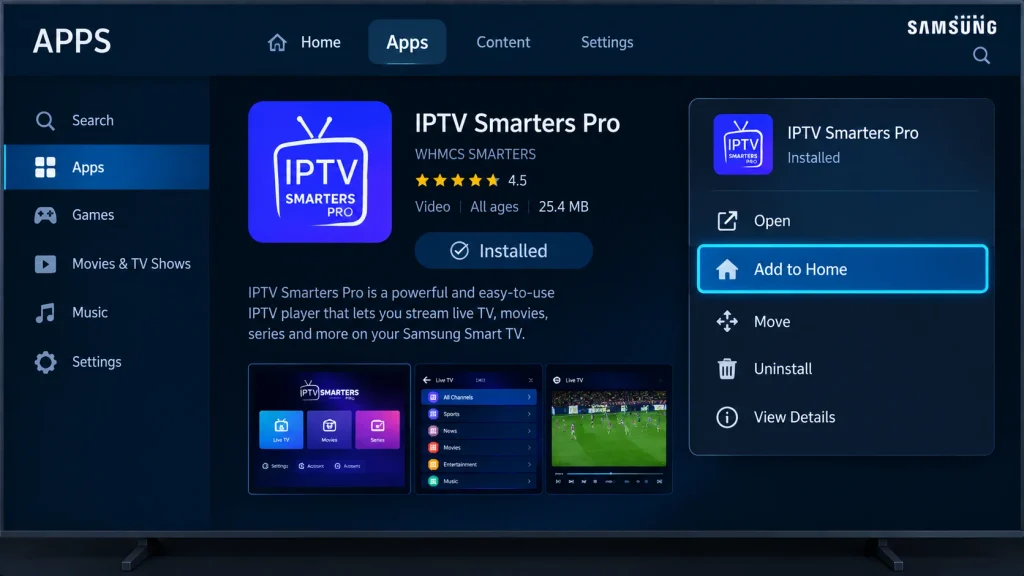
Step 7: Add the App to Your Home Screen
When the download finishes, select Add to Home so the app appears in your Home screen row instead of getting lost in the Apps list.
Part 3: Connect Your IPTV Subscription
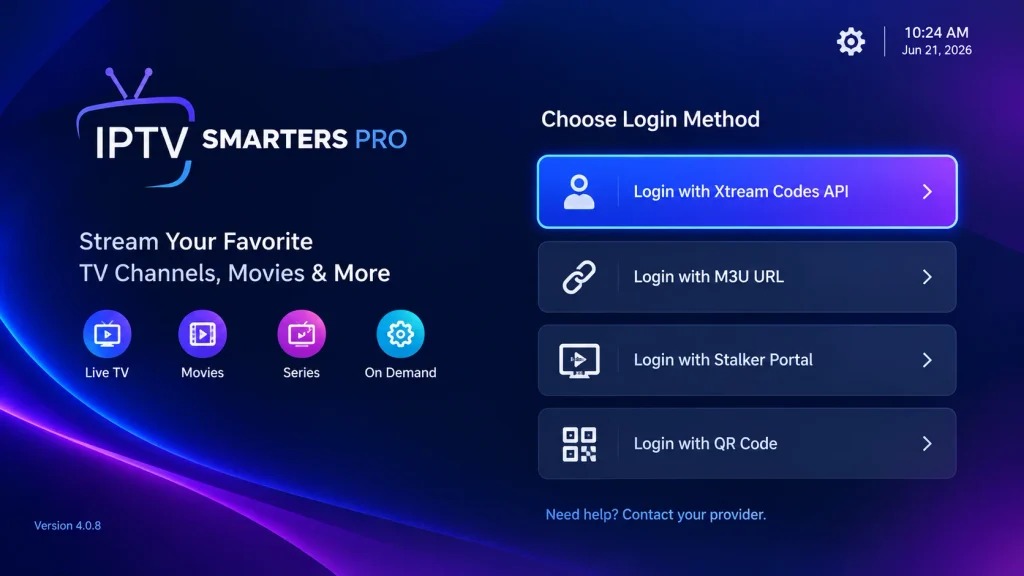
Step 8: Open the App and Choose Your Login Type
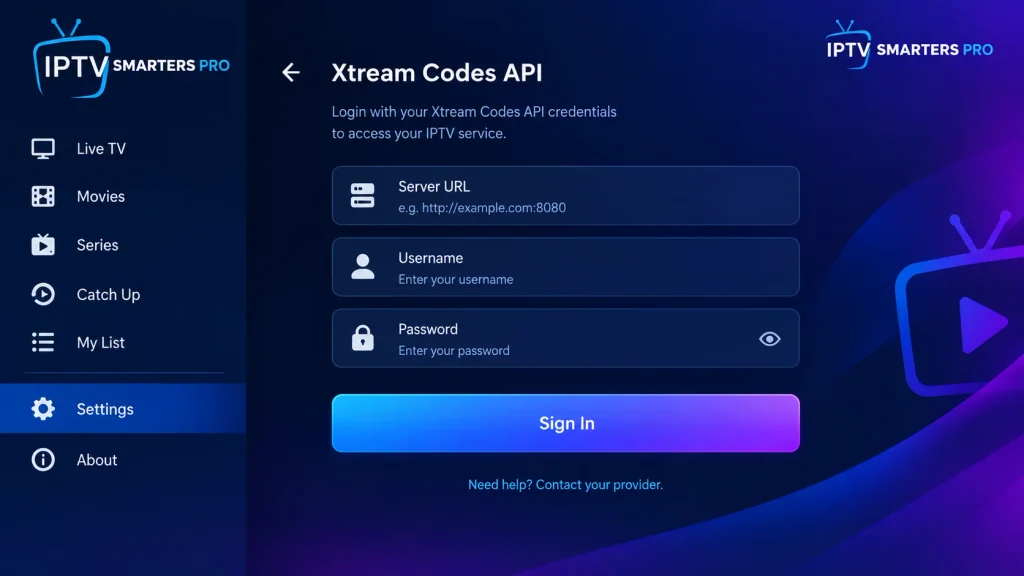
Launch the app from the Home screen. In IPTV Smarters Pro, select Login with Xtream Codes API. MAC-based players skip this screen and display your TV’s MAC address instead. Not sure which applies? Our guide on how M3U and MAC address logins differ explains it in plain terms.
Step 9: Enter Your IPTV Samsung TV Login Details
For Xtream Codes apps: Type any name for the profile, then enter the username, password, and server URL exactly as your provider sent them, including http:// and any port number, and select Add User.
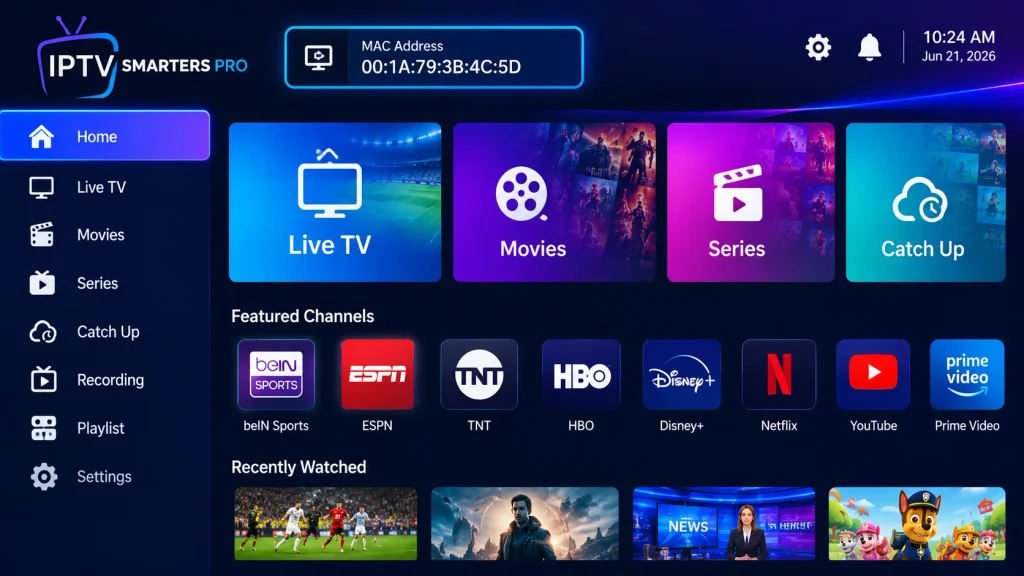
For MAC-based apps: Write down the MAC address shown on the TV, open the app’s official website on your phone or computer, and paste your M3U link against that MAC address. Our Smart IPTV playlist upload guide walks through each field.
Step 10: Restart the App to Load Your Channels
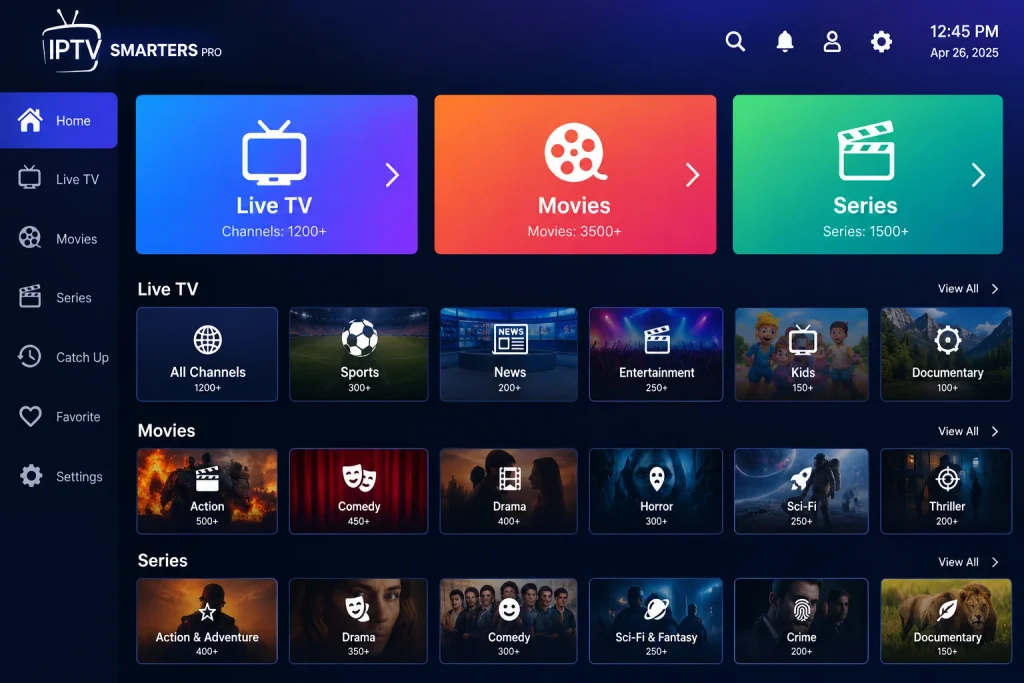
Close the app with the Back or Exit button and reopen it. The first load can take a minute while the app downloads your channel list, movie library, and TV guide.
Step 11: Test a Live Channel and the TV Guide
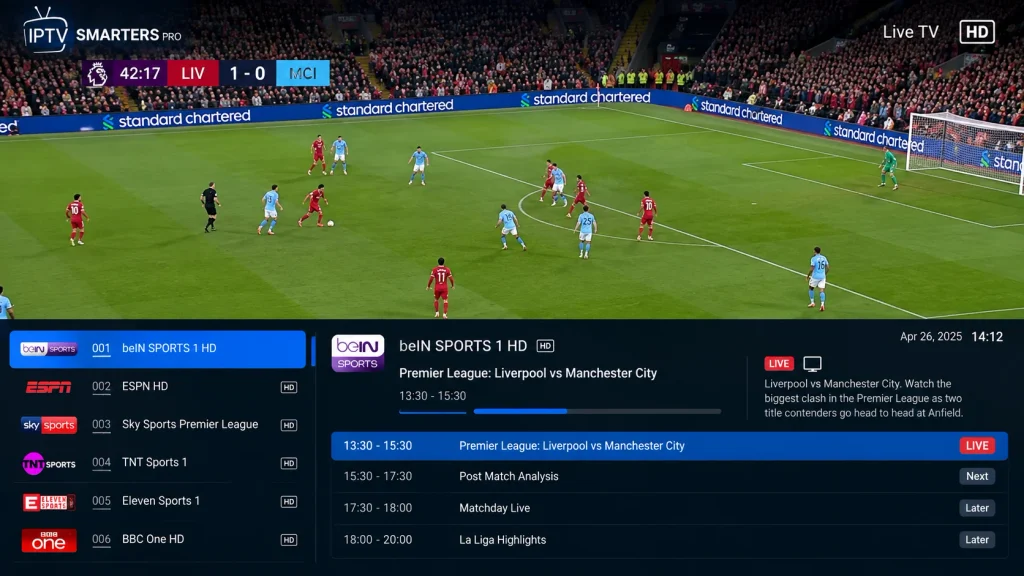
Open Live TV, play any channel, and check that the program guide (EPG) shows what’s on now. If playback starts within a few seconds, your setup is complete.
Troubleshooting IPTV in Samsung TV: Common Problems and Fixes
The App Doesn’t Appear in the Samsung Store
App IPTV Samsung listings differ by country and model year, so a player available in one region may be missing in another. Samsung Fernseher IPTV users in Germany, Austria, or Switzerland, for example, may see a different app lineup than US viewers. Update your TV software, double-check the spelling in your search, and try an alternative player your provider supports. If nothing suitable is available, an Android-based streaming device opens up more choices; see our list of the best IPTV player apps for Android.
“Invalid Login” or “Server Not Found” in IPTV Smarters Pro on Samsung TV
Re-enter your details carefully, since usernames and passwords are case-sensitive and the server URL must include the correct port. Also note that the Samsung listing asks IPTV providers to register their server URL with the developer for the app to work with their service. If your details are correct but login still fails, ask your provider whether they support IPTV Smarters Pro on Samsung TVs.
Channels Don’t Load on a MAC-Based Samsung TV IPTV Player
Confirm the MAC address you entered on the website matches the one on your TV character for character. Some players show a different MAC address when you switch between Wi-Fi and Ethernet, so check it again if you changed connection type. Paste your M3U link into a web browser to confirm it’s still active.
Buffering or Freezing on IPTV Samsung TV
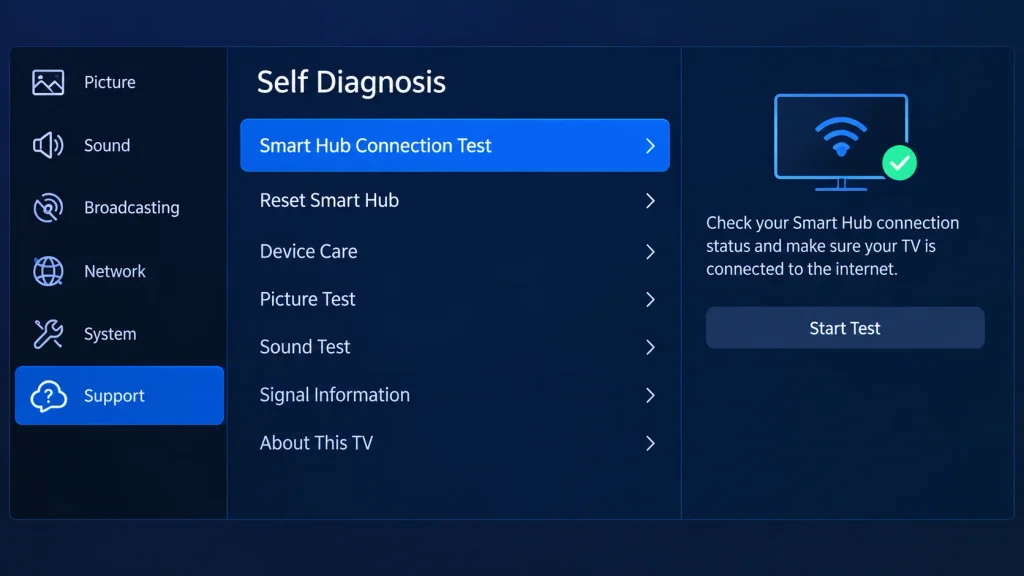
Run a speed test and switch to Ethernet if you can. Samsung’s Smart Hub Connection Test (Settings > All Settings > Support > Device Care > Self Diagnosis) checks your network and signal strength. Samsung’s support pages also suggest setting the DNS server manually to 8.8.8.8 if the DNS check fails. An older router can be the bottleneck, so consider upgrading to a dedicated IPTV-ready router. To judge a provider’s stability before committing, test it during peak evening hours with a free IPTV trial.
The Application Freezes or Crashes
If an application IPTV Samsung viewers rely on becomes slow or unresponsive, restart the TV first. If the problem continues, reset Smart Hub via Settings > Support > Device Care > Self Diagnosis > Reset Smart Hub (the default PIN is 0000), then reinstall the app. A reset removes downloaded apps and stored accounts, so keep your login details handy.
Frequently Asked Questions About IPTV on Samsung Smart TV
-
Can I use IPTV on a Samsung smart TV?
Yes. Install a compatible IPTV player from the Apps section of Smart Hub and connect it to your subscription. App availability depends on your TV’s model year and region, so check the store on your own TV before paying for a service.
-
What is the best IPTV app for Samsung Smart TV?
IPTV Smarters Pro is a strong free choice if your provider supplies Xtream Codes details and supports the app on Samsung. If your provider sends an M3U link, a MAC-based player such as Smart IPTV or IBO Player is usually the better fit.
-
Is IPTV Smarters Pro available on Samsung TV?
Yes. IPTV Smarters Pro has an official listing in the Samsung app store, published by WHMCS Smarters. Your provider must have registered its server with the developer, so confirm compatibility with them before you subscribe.
-
Do I need a VPN to watch IPTV on my Samsung TV?
No, a VPN isn’t required for the app to work. Some people use one for privacy, often set up on the router if their TV’s store has no suitable app. A VPN doesn’t change the legal status of what you watch, so stick to licensed IPTV services.
Final Thoughts: Enjoy IPTV on Your Samsung Smart TV
A working IPTV Samsung Smart TV setup comes down to three things: a connected and updated TV, the player app that matches your login type, and a reliable subscription. Follow the 11 steps above, use the troubleshooting section when something goes wrong, and you’ll be streaming within minutes. Still choosing a service? Compare our picks for the top-rated IPTV providers before you subscribe.